
6E Club Login – Sign In Steps and Fixes
Most days, 6E Club login is a ten-second job. When it is not, the cause is nearly always one of a few small things.
This page covers both: the normal steps, and what to try when they fail.
6E CLUB LOGIN

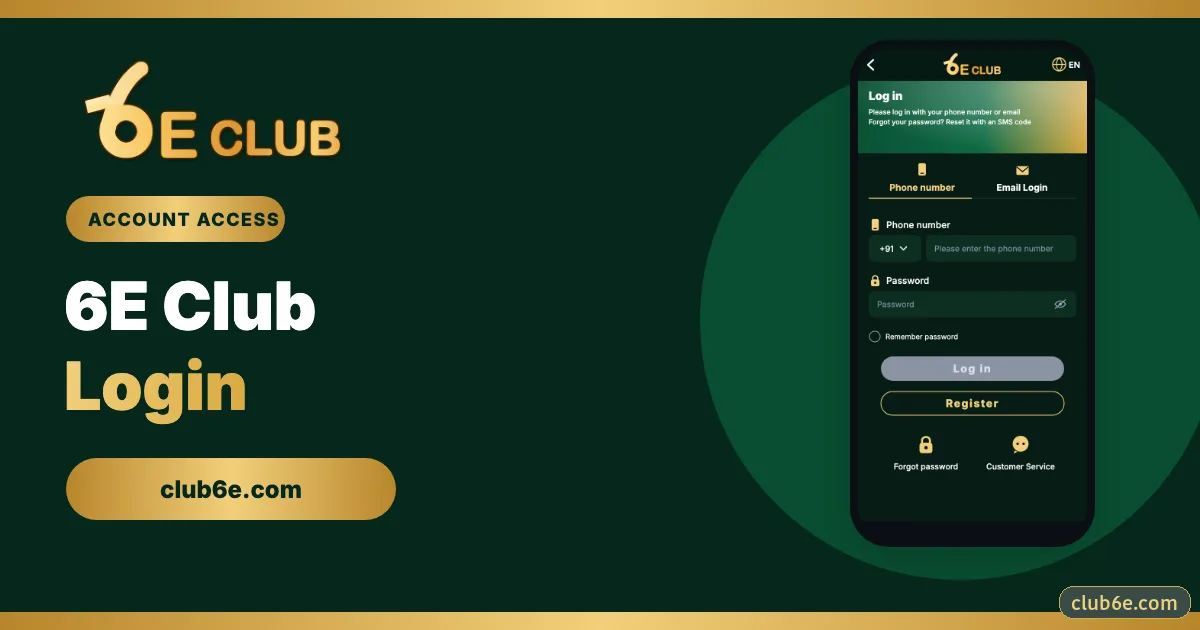
6E Club login screen
Phone/email tabs, password, Remember password, Forgot password, Customer service.
What Is 6E Club Login?
It is the screen that opens your account using the mobile number you registered with (or a bound email) and your password. Same login on the app, on iPhone’s web app and in a browser.
Steps to Log In on 6E Club
- Open the 6E Club app or your own bookmark.
- Tap Log in.
- Phone tab: type your number without 0 or +91.
- Type the password. The eye icon shows what you typed.
- Tap Log in.
Phone or Email?
| Tab | When to use it |
|---|---|
| Phone tab | Everyday use |
| Email tab | Only works if you bound an email; handy when your SIM is elsewhere |
Forgot Password?
Tap Forgot password on the same screen, enter your number, set a new password twice and confirm with the SMS code. Full fixes, including lost SIMs, on 6E Club forgot password fix.
Quick Fixes
Password “incorrect” but you’re sure it’s right
Autofill is holding an old one. Clear it and type slowly.
“Account does not exist”
You probably registered with another number.
Locked
Wait 10–15 minutes.
Endless loading
Swap Wi-Fi for mobile data or open the app instead.
Is 6E Club Login Safe?
Yes, on the official app or a bookmark you saved from the official channel. The risk is copy sites that look identical. A genuine 6E Club login never asks for an OTP on your usual phone and never asks for a UPI PIN.
Our Take
Install the app, turn on login alerts, use a password you use nowhere else. Do those three things and 6E Club login stops being something you think about.
Frequently asked questions
Do I need an OTP to log in?
Only on a new phone or after a reset.
Can I log in on two phones?
Yes; each new phone may ask for an SMS code once.